
Blur faces and details in a photo
Hide the faces of people who have not agreed to be in your photo, and cover anything else you do not want to share, such as a number plate, house number, name badge or screen.
Your image will be processed on this device.
How to blur faces and details in a photo
- Select or drop a photo.
- Faces are found automatically and marked. Untick any you want to keep.
- Drag across the picture to add any other area.
- Choose Pixelate, Blur or Solid box, then download.
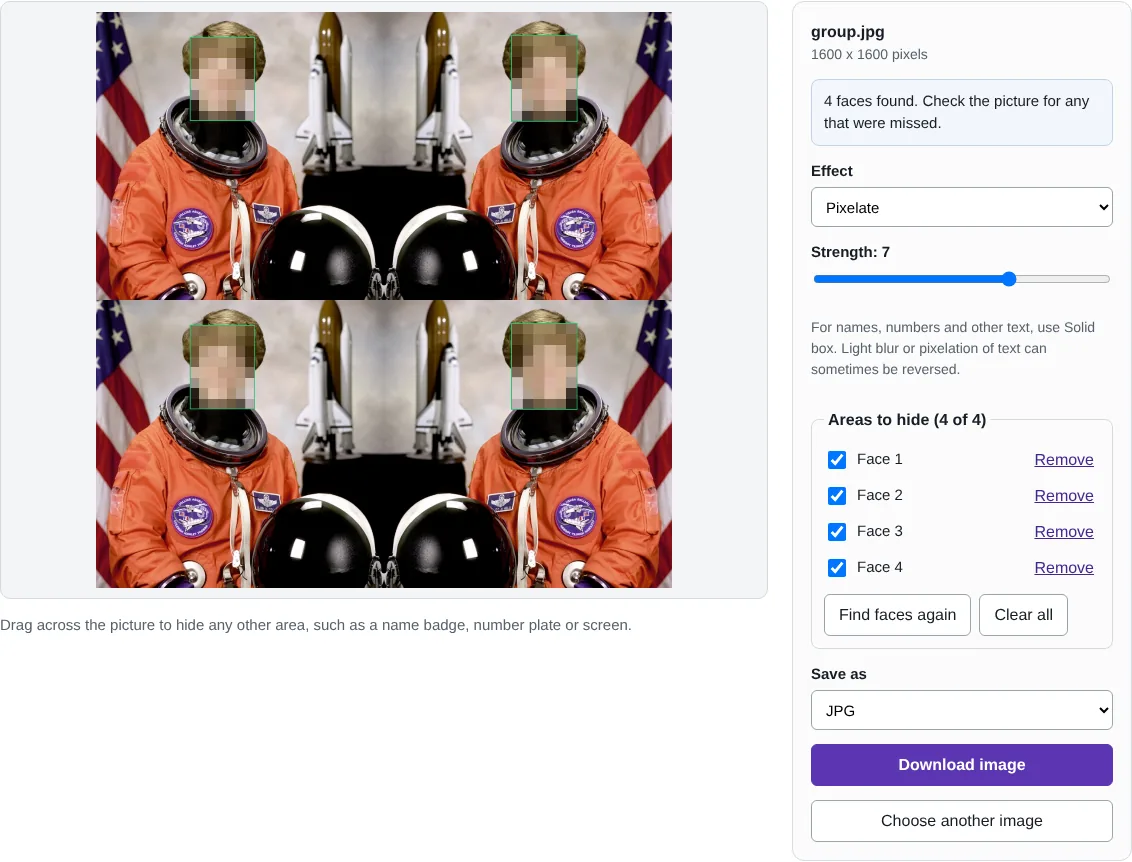
Worked example: finding four faces
In this test we made a 1,600 x 1,600 pixel image from four copies of a public domain NASA portrait, two of them mirrored. The face finder marked all four faces, and they were pixelated straight away. Each face appeared in the list as Face 1 to Face 4, so any could be unticked to leave it visible.
The download was a 1,600 x 1,600 JPG with the pixels in the four boxes replaced by large blocks. It carried no location or camera details.
Pixelate, blur or solid box
Pixelate replaces the area with large squares, the familiar look for hiding faces. Blur makes a smooth, softer effect. Solid box fills the area with one colour and removes everything underneath. The strength slider controls how coarse the pixelation or how strong the blur is.
For faces, strong pixelation or blur is usually enough. For text, such as names, addresses, account or registration numbers, always use Solid box: researchers have shown that lightly blurred or pixelated text can sometimes be read again, especially when the font is known. Solid box leaves nothing to recover.
How faces are found, and what it can miss
Faces are found by YuNet, a small face detection model under the MIT licence, which runs in your browser like the background remover. It finds faces facing the camera and turned partly to the side, down to quite small sizes. It can miss faces that are very small, turned away, partly covered, in shadow or in profile. Always look over the whole picture, and drag across anything it missed. Boxes are made slightly larger than the face so the hairline and chin are covered.
Other things to look for before sharing: name badges and lanyards, school uniforms and logos, house numbers, car registrations, and screens or documents in the background.
Good to know
- The face finder can miss small, turned or partly hidden faces, so check the whole picture.
- For text such as names or account numbers, use Solid box. Light blur or pixelation of text can sometimes be reversed.
- The pixels in each area are replaced in the saved copy, not covered by a layer.
- The saved copy has no location, camera or date details.
Why your images stay on your device
RedactNinja Image runs in your web browser. When you choose an image, it is read and processed on your own computer, tablet or phone. It is not uploaded to a server, so there is nothing for us to store, look at or delete afterwards. The background remover and face finder use small AI models that your browser downloads from this site the first time you need them; the models come to your image, not the other way round.
You can check this yourself: open your browser's developer tools, select the Network tab and use a tool. Your image does not appear in the requests. The tools load no advertising or analytics code. How to check that nothing is uploaded.
Free, with no sign-up and no watermark
Every tool is free to use without an account. Nothing is added to your images, and there are no daily limits. Very large images depend on your device's memory, so older phones may be slower.
Questions about Blur faces and details
Can someone undo the blur?
Not from the saved copy: the original pixels are replaced. Strong pixelation of a face is hard to reverse, but for text use Solid box.
Does it work on group photos?
Yes. Each face found gets its own box, which you can untick or remove.
Are my images uploaded?
No. The tool runs in your browser and processes the image on your device. Nothing is sent to a server.
Is it free?
Yes. There is no account, no watermark and no daily limit.
Related tools
All image tools
Edit
- Remove background
- Resize image
- Crop image
- Rotate image
- Adjust colours
- Add watermark
- Annotate screenshot
- Combine images
Make smaller and convert
- Compress image
- Convert image
- HEIC to JPG
- PNG to JPG
- JPG to PNG
- WebP to JPG
- WebP to PNG
- JPG to WebP
- Favicon and icon maker