
Convert HEIC to JPG
iPhones save photos as HEIC, which Windows, many websites and older software cannot open. Turn them into ordinary JPG files without sending them anywhere.
Your image will be processed on this device.
How to convert HEIC to JPG
- Select or drop your HEIC photos, up to 50 at once.
- Check that Convert to is set to JPG, or choose PNG.
- Select Convert to JPG, then download each photo or all of them as one ZIP.
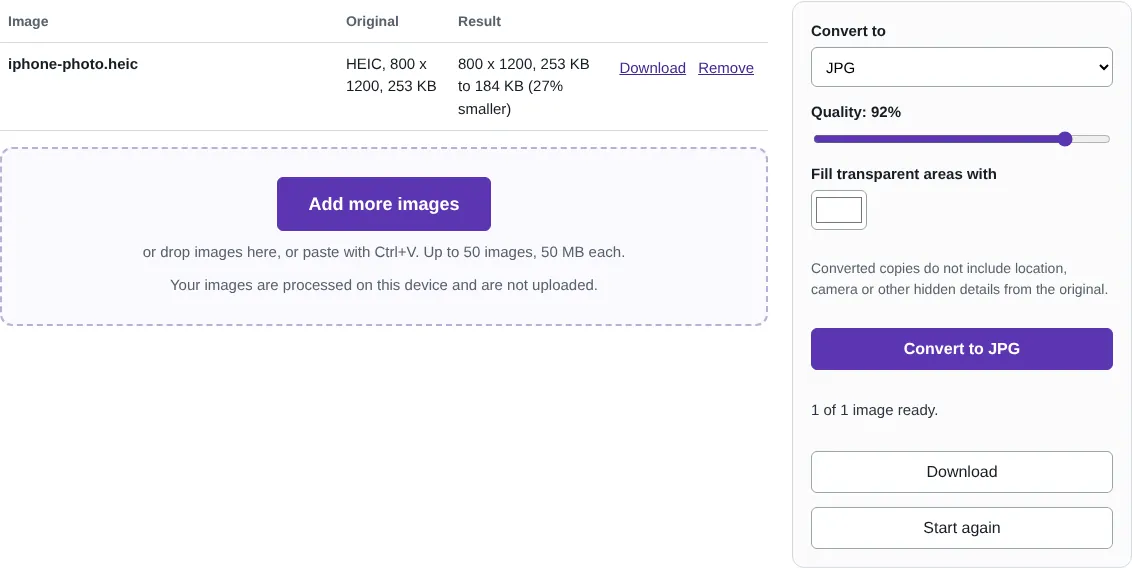
Worked example: an iPhone photo taken in portrait
We made a HEIC test photo the way an iPhone stores a portrait shot: the picture is saved sideways with an instruction to turn it upright. The file was 253 KB. In Chromium, which cannot open HEIC by itself, the decoder loaded from this site and the photo appeared upright at 800 x 1,200 pixels about 1.2 seconds after it was selected on our test computer.
With Convert to set to JPG and the default quality of 92%, the JPG came to 184 KB, 27% smaller than the HEIC. The copy kept the picture the right way up and carried none of the HEIC file's hidden details.
What HEIC is, and why it causes problems
HEIC (High Efficiency Image Container) is the format iPhones and iPads use for photos by default. It stores a photo in roughly half the space of a JPG of similar quality, using HEVC compression, which is also widely used for 4K video. The catch is support: Windows needs extra extensions to open HEIC, many upload forms accept only JPG or PNG, and older photo software cannot read it.
Converting to JPG trades a slightly larger file for a picture that opens anywhere. If you send photos from an iPhone often, setting Settings > Camera > Formats to Most Compatible makes the iPhone save JPG in the first place.
How the conversion works on your device
Some browsers can open HEIC themselves; when yours can, the tool uses that. Otherwise it uses libheif, an open source HEIC decoder published under the GNU Lesser General Public License, compiled to WebAssembly. The decoder files (about 1.5 MB) come from this site the first time and run in a separate background worker in your browser, so the photo never leaves your device.
Every RedactNinja Image tool can open HEIC photos in the same way, so you can also resize, crop, compress or remove the background from an iPhone photo directly.
Good to know
- Photos are decoded on your device. Browsers that can open HEIC themselves do so; otherwise a HEIC decoder of about 1.5 MB downloads from this site the first time.
- Photos keep their rotation, so portrait shots stay upright.
- The JPG copies do not include the location, camera or date details stored in the HEIC file.
- For a Live Photo, the still picture is converted.
Why your images stay on your device
RedactNinja Image runs in your web browser. When you choose an image, it is read and processed on your own computer, tablet or phone. It is not uploaded to a server, so there is nothing for us to store, look at or delete afterwards. The background remover and face finder use small AI models that your browser downloads from this site the first time you need them; the models come to your image, not the other way round.
You can check this yourself: open your browser's developer tools, select the Network tab and use a tool. Your image does not appear in the requests. The tools load no advertising or analytics code. How to check that nothing is uploaded.
Free, with no sign-up and no watermark
Every tool is free to use without an account. Nothing is added to your images, and there are no daily limits. Very large images depend on your device's memory, so older phones may be slower.
Questions about HEIC to JPG
Why can I not open HEIC photos on Windows?
HEIC photos use HEVC compression. Windows needs extra extensions from the Microsoft Store (HEIF Image Extensions and HEVC Video Extensions) to open them, and many websites and older programs cannot open them at all. JPG opens everywhere.
Can I stop my iPhone saving HEIC?
Yes. Go to Settings > Camera > Formats and choose Most Compatible. New photos are then saved as JPG.
Does converting lose quality?
A little, as with any JPG. The default quality setting keeps the difference hard to see.
Are my images uploaded?
No. The tool runs in your browser and processes the image on your device. Nothing is sent to a server.
Is it free?
Yes. There is no account, no watermark and no daily limit.
Related tools
All image tools
Edit
- Remove background
- Resize image
- Crop image
- Rotate image
- Adjust colours
- Add watermark
- Annotate screenshot
- Combine images
Make smaller and convert
- Compress image
- Convert image
- HEIC to JPG
- PNG to JPG
- JPG to PNG
- WebP to JPG
- WebP to PNG
- JPG to WebP
- Favicon and icon maker