
Crop an image
Trim a photo or screenshot to the part you need, freehand or to a fixed shape such as square, 4:5 for a portrait post or 16:9 for a banner.
Your image will be processed on this device.
How to crop an image
- Select or drop an image.
- Choose a shape, or keep Free for any size.
- Drag the box or its corners, or type the position and size in pixels.
- Download the cropped image.
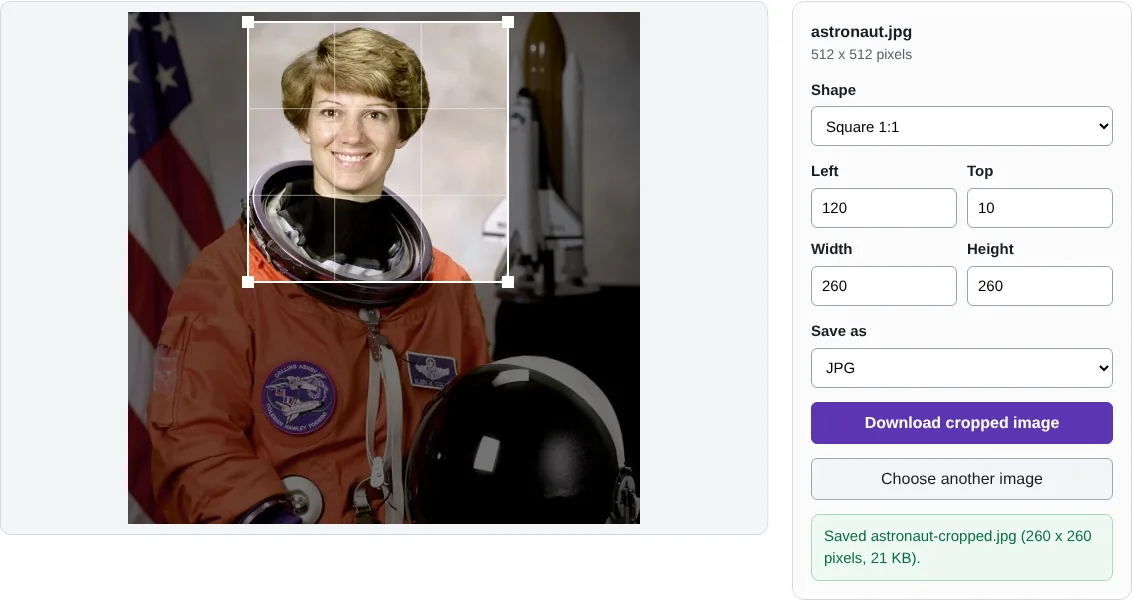
Worked example: a square profile picture
In this test we opened a 512 x 512 pixel portrait, chose Square 1:1, and typed a width of 260 pixels with the box 120 pixels from the left and 10 from the top, so it framed the head and shoulders. The download was a 260 x 260 pixel JPG of 21,184 bytes.
Typing the numbers is useful when several pictures must match exactly, for example staff photos on a website. Dragging is quicker for a one-off.
Shapes for social media and documents
Square 1:1 suits profile pictures. 4:5 is a common portrait shape for social media posts. 16:9 matches widescreen video, slides and many website banners, and 1.91:1 is the usual shape for link previews. 3:2 and 4:3 match most camera and phone photos, so cropping to them keeps a natural look.
With a shape chosen, the box keeps its proportions as you drag a corner, and typing a width sets the height for you. Choose Free to draw any size.
Cropping to remove private details
Cropping is a simple way to take something out of a picture before you share it: an address on a letter, a car registration, other people at the edge of the frame. The saved copy contains only the pixels inside the box, so the rest cannot be recovered from it. If the detail is in the middle of the picture, use Blur faces and details instead.
Good to know
- The grid lines divide the box into thirds, which helps place the subject.
- Cropping removes the rest of the picture from the saved copy; it is not just hidden.
- The cropped copy is saved without location, camera and date details.
Why your images stay on your device
RedactNinja Image runs in your web browser. When you choose an image, it is read and processed on your own computer, tablet or phone. It is not uploaded to a server, so there is nothing for us to store, look at or delete afterwards. The background remover and face finder use small AI models that your browser downloads from this site the first time you need them; the models come to your image, not the other way round.
You can check this yourself: open your browser's developer tools, select the Network tab and use a tool. Your image does not appear in the requests. The tools load no advertising or analytics code. How to check that nothing is uploaded.
Free, with no sign-up and no watermark
Every tool is free to use without an account. Nothing is added to your images, and there are no daily limits. Very large images depend on your device's memory, so older phones may be slower.
Questions about Crop image
Can I crop to an exact pixel size?
Yes. Type the width and height in the number fields. With a fixed shape selected, the other side follows automatically.
Does cropping lower the quality?
No pixels inside the box are changed. JPG and WebP files are saved again at high quality.
Are my images uploaded?
No. The tool runs in your browser and processes the image on your device. Nothing is sent to a server.
Is it free?
Yes. There is no account, no watermark and no daily limit.
Related tools
All image tools
Edit
- Remove background
- Resize image
- Crop image
- Rotate image
- Adjust colours
- Add watermark
- Annotate screenshot
- Combine images
Make smaller and convert
- Compress image
- Convert image
- HEIC to JPG
- PNG to JPG
- JPG to PNG
- WebP to JPG
- WebP to PNG
- JPG to WebP
- Favicon and icon maker