
Remove the background from an image
Cut out a person, pet or product from its background and save it as a transparent PNG, or put it on a plain colour or a blurred version of the original. The AI model runs on your device.
Your image will be processed on this device.
How to remove the background from an image
- Select or drop one or more photos (up to 50), or paste one with Ctrl+V.
- Wait a few seconds while the subject is found. The first time, the model downloads from this site. With several photos, each one is done in turn.
- Choose a transparent background, a colour or a blurred background, and soft or sharp edges.
- Touch up any edge with the Erase or Restore brush, then download the image, or download all of them as one ZIP.
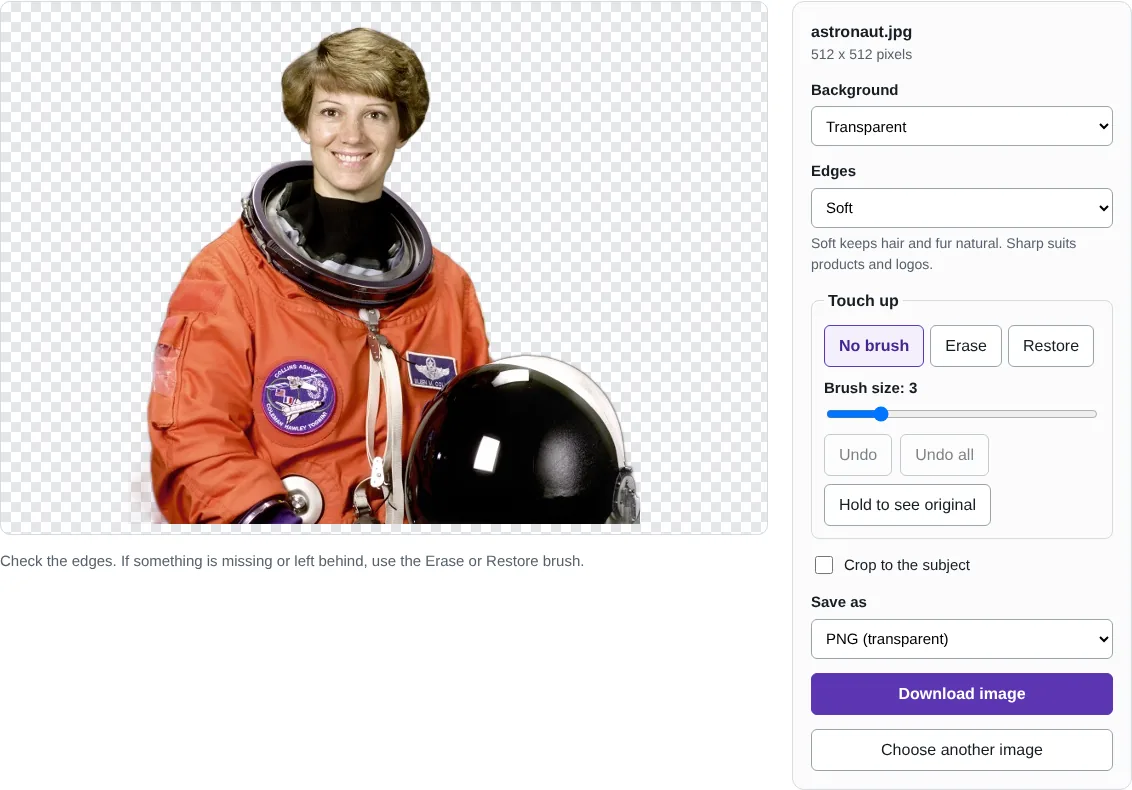
Worked example: a portrait with a studio backdrop
In this test we used a public domain NASA portrait, 512 x 512 pixels, of an astronaut in an orange suit in front of a flag and a model rocket. The tool found the person, the suit and the helmet she is holding, and made the backdrop transparent: 45% of the picture became see-through. The transparent PNG was 342,714 bytes.
We then chose Solid colour with white, which saved a JPG of 56,395 bytes, and Blurred original, which kept the flag and rocket as a soft blur behind the sharp subject. On our test machine, a deliberately slow computer with two processor cores, the first image took about 16 seconds including the one-off model download, and the next image about 11 seconds. Most laptops and phones from the last few years are faster.
How the background remover works on your device
The tool uses IS-Net, an image segmentation model published by its researchers under the Apache License 2.0, reduced to 8-bit numbers so it downloads faster. The model looks at a 1,024 x 1,024 pixel copy of your photo and scores every pixel as subject or background. That map is scaled back to the full size of your photo and used as the transparency, so the saved image keeps its original resolution.
The model runs with ONNX Runtime Web inside your browser. Your browser downloads it from this site, checks its fingerprint, and keeps a copy, so the second photo starts straight away. Your photo is never sent to the model; the model comes to your photo.
Getting clean edges: soft, sharp and the touch-up brush
Soft edges keep the semi-transparent pixels at the border, which looks natural for hair, fur and anything slightly out of focus. Sharp edges make every pixel either fully kept or fully removed, which suits products, logos and cut-outs for print.
When the model is unsure, it can leave a patch of background or remove part of the subject, typically where the two have similar colours. Choose Erase and paint over leftover background, or Restore and paint over a missing part. Undo removes the last stroke. Hold to see original shows the photo as it was, so you can compare. Tick Crop to the subject to trim the empty space around the cut-out, which helps when you place it in a document or presentation.
Removing the background from several photos
Select up to 50 photos together, for example a set of product shots for a shop listing. The subject is found in each photo in turn, and the list under the picture shows which are ready. Click any photo in the list to check its edges and touch it up while the others are still being done; each photo keeps its own brush strokes.
The background, edge, crop and format settings apply to every photo, so a set of products can all go on the same white background. Download all as ZIP saves every finished photo in one file. In our test, four photos (a portrait, a cup of coffee, a cat and a 1,600 x 1,600 group picture) were all ready in about 49 seconds on the slow two-core test computer, including loading the model, and the ZIP of transparent PNGs was 3.65 MB.
Good to know
- Works best on photos with one clear subject: a person, a pet, a product or an object.
- Fine hair, fur, glass and smoke are the hardest parts. Check the edges at full size before you use the image.
- Transparent images are saved as PNG, or as WebP where your browser supports it.
- The model is downloaded once, about 46 MB, and your browser keeps a copy for next time.
Why your images stay on your device
RedactNinja Image runs in your web browser. When you choose an image, it is read and processed on your own computer, tablet or phone. It is not uploaded to a server, so there is nothing for us to store, look at or delete afterwards. The background remover and face finder use small AI models that your browser downloads from this site the first time you need them; the models come to your image, not the other way round.
You can check this yourself: open your browser's developer tools, select the Network tab and use a tool. Your image does not appear in the requests. The tools load no advertising or analytics code. How to check that nothing is uploaded.
Free, with no sign-up and no watermark
Every tool is free to use without an account. Nothing is added to your images, and there are no daily limits. Very large images depend on your device's memory, so older phones may be slower.
Questions about Remove background
Is it really free?
Yes. There is no credit system, no lower-quality free download and no watermark. The full-size result is the one you download.
Why does the first image take longer?
The background removal model is downloaded from this site the first time. After that your browser reuses its copy, so the next images start straight away.
Can I remove the background from several photos at once?
Yes. Select up to 50 photos together. The subject is found in each one in turn, and you can check and touch up any of them while the rest are being done. The background, edge, crop and format settings apply to every photo, and Download all as ZIP saves them in one file.
What if part of the subject is missing?
Select Restore and paint over the missing part. Erase does the opposite and removes leftover background.
Are my images uploaded?
No. The tool runs in your browser and processes the image on your device. Nothing is sent to a server.
Related tools
All image tools
Edit
- Remove background
- Resize image
- Crop image
- Rotate image
- Adjust colours
- Add watermark
- Annotate screenshot
- Combine images
Make smaller and convert
- Compress image
- Convert image
- HEIC to JPG
- PNG to JPG
- JPG to PNG
- WebP to JPG
- WebP to PNG
- JPG to WebP
- Favicon and icon maker