
Rotate or flip an image
Turn a sideways photo upright, flip a selfie that came out mirrored, or rotate a scan of a document so it reads the right way.
Your image will be processed on this device.
How to rotate or flip an image
- Select or drop an image.
- Select Rotate left or Rotate right, or flip it left to right or top to bottom.
- Check the preview, then download the image.
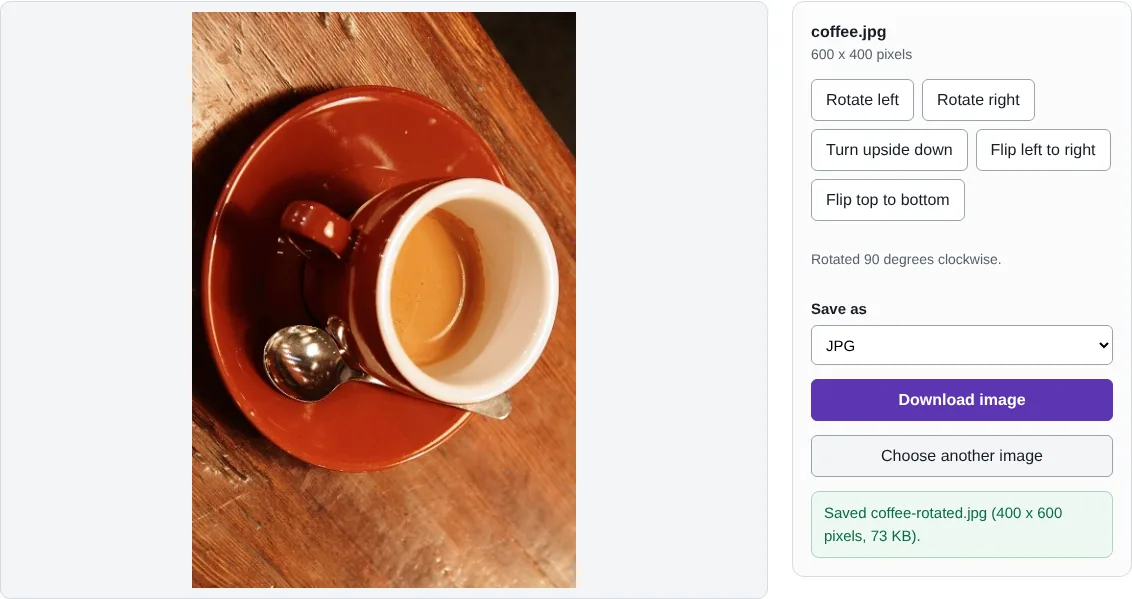
Worked example: turning a photo a quarter turn
In this test we opened a 600 x 400 pixel photo of a coffee cup and selected Rotate right once. The preview turned to portrait and the download was a 400 x 600 pixel JPG of 75,255 bytes, with every pixel kept.
Rotating compared with flipping
Rotate left and Rotate right turn the picture a quarter turn, and Turn upside down turns it half way. Flip left to right makes a mirror image, which corrects selfies where text appears back to front. Flip top to bottom mirrors it vertically, which is rarely needed for photos but useful for some scans.
Quarter turns move pixels without resampling, so nothing is cropped or blurred. JPG and WebP files are saved again at 92% quality.
Photos that look upright on your phone but sideways elsewhere
A phone usually stores a photo the way the sensor saw it and adds a rotation tag. Your phone and most apps read the tag, but some websites and older programs do not, so the photo appears sideways. This tool applies the tag when it opens the photo, and the saved copy is upright in its pixels, so it shows correctly everywhere.
Good to know
- The picture is saved upright, so it shows the same way in every app.
- Rotating by quarter turns keeps every pixel; nothing is cropped.
Why your images stay on your device
RedactNinja Image runs in your web browser. When you choose an image, it is read and processed on your own computer, tablet or phone. It is not uploaded to a server, so there is nothing for us to store, look at or delete afterwards. The background remover and face finder use small AI models that your browser downloads from this site the first time you need them; the models come to your image, not the other way round.
You can check this yourself: open your browser's developer tools, select the Network tab and use a tool. Your image does not appear in the requests. The tools load no advertising or analytics code. How to check that nothing is uploaded.
Free, with no sign-up and no watermark
Every tool is free to use without an account. Nothing is added to your images, and there are no daily limits. Very large images depend on your device's memory, so older phones may be slower.
Questions about Rotate image
Why is my photo sideways in some apps?
Phones often save a photo as taken and add a tag saying how to turn it. Apps that ignore the tag show it sideways. Saving a rotated copy here fixes the pixels themselves.
Are my images uploaded?
No. The tool runs in your browser and processes the image on your device. Nothing is sent to a server.
Is it free?
Yes. There is no account, no watermark and no daily limit.
Related tools
All image tools
Edit
- Remove background
- Resize image
- Crop image
- Rotate image
- Adjust colours
- Add watermark
- Annotate screenshot
- Combine images
Make smaller and convert
- Compress image
- Convert image
- HEIC to JPG
- PNG to JPG
- JPG to PNG
- WebP to JPG
- WebP to PNG
- JPG to WebP
- Favicon and icon maker