
Make a favicon and website icons
Make every icon a website needs from one logo or picture: the favicon shown in browser tabs, the icon used when someone adds your site to an iPhone or Android home screen, and the manifest that lists them.
Your image will be processed on this device.
How to make a favicon and website icons
- Select or drop your logo or image, ideally square and at least 512 pixels across.
- Choose whether to fit the whole picture with space around it or fill the square, and pick a background.
- Check the previews on light and dark backgrounds.
- Download the ZIP, upload the files to the top folder of your site and paste the lines shown into the head of your pages.
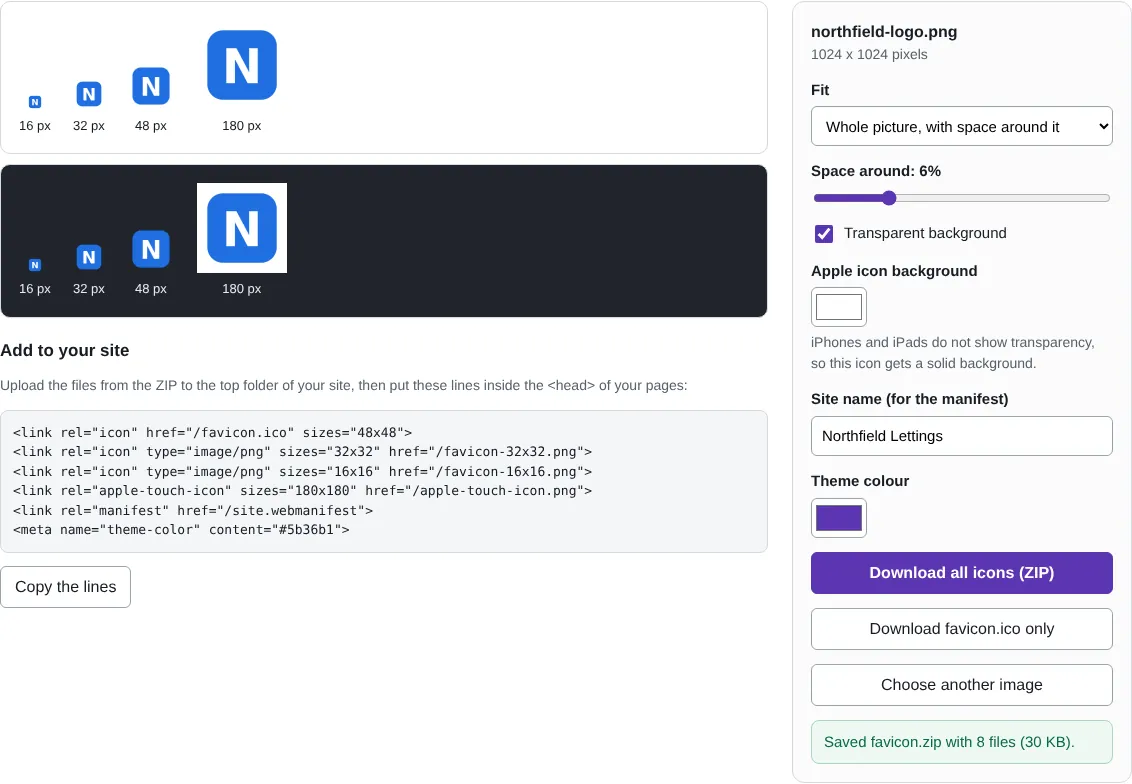
Worked example: icons for a small business site
We used a fictional 1,024 x 1,024 pixel PNG logo, a white N on a blue rounded square, for a site called Northfield Lettings. With Whole picture, 6% space around it and a transparent background, the tool produced eight files in a 30 KB ZIP, including a favicon.ico of 2,618 bytes holding 16, 32 and 48 pixel versions.
The previews showed the logo was still recognisable at 16 pixels on both a light and a dark browser tab. The Apple touch icon got a white background, because iPhones show transparent areas as black, and the site name went into site.webmanifest.
Which icon is used where
Browsers show the 16 and 32 pixel icons in tabs, bookmarks and history; favicon.ico is the file older browsers and some tools look for at the top of a site. iPhones and iPads use apple-touch-icon.png when someone adds your site to the home screen. Android and Chrome use the 192 and 512 pixel icons listed in site.webmanifest, for the home screen and the splash screen.
Search engines can also show a site's favicon next to its results, so a clear icon helps people recognise your site. Upload the files to the top folder of the site and add the lines shown to the head of every page.
Getting a clear icon at 16 pixels
A 16 pixel icon has 256 dots in total, so fine detail and small text disappear. A single letter, a simple symbol or the strongest part of a logo works far better than a full logo with a name. Start from a square image of at least 512 pixels so the larger icons stay sharp.
Fit Whole picture keeps the entire image with space around it, which suits round or irregular logos. Fill the square crops the sides of a wide image to fill the icon completely. Rounded corners and a background colour can make a logo stand out on dark browser themes.
Good to know
- favicon.ico contains 16, 32 and 48 pixel versions, stored as PNG inside the ICO file, which all current browsers and Windows read.
- The Apple touch icon (180 pixels) always has a solid background, because iPhones and iPads do not show transparency.
- The Android icons are 192 and 512 pixels and are listed in site.webmanifest.
- Simple, bold shapes work best at 16 pixels. Fine text in a logo will not be readable in a browser tab.
Why your images stay on your device
RedactNinja Image runs in your web browser. When you choose an image, it is read and processed on your own computer, tablet or phone. It is not uploaded to a server, so there is nothing for us to store, look at or delete afterwards. The background remover and face finder use small AI models that your browser downloads from this site the first time you need them; the models come to your image, not the other way round.
You can check this yourself: open your browser's developer tools, select the Network tab and use a tool. Your image does not appear in the requests. The tools load no advertising or analytics code. How to check that nothing is uploaded.
Free, with no sign-up and no watermark
Every tool is free to use without an account. Nothing is added to your images, and there are no daily limits. Very large images depend on your device's memory, so older phones may be slower.
Questions about Favicon and icon maker
What files do I get?
favicon.ico, favicon-16x16.png, favicon-32x32.png, apple-touch-icon.png, android-chrome-192x192.png, android-chrome-512x512.png, site.webmanifest and a text file with the lines to add to your pages.
Where do the files go?
In the top folder of your website, the same folder as your home page, so they can be found at addresses such as /favicon.ico.
Are my images uploaded?
No. The tool runs in your browser and processes the image on your device. Nothing is sent to a server.
Is it free?
Yes. There is no account, no watermark and no daily limit.
Related tools
All image tools
Edit
- Remove background
- Resize image
- Crop image
- Rotate image
- Adjust colours
- Add watermark
- Annotate screenshot
- Combine images
Make smaller and convert
- Compress image
- Convert image
- HEIC to JPG
- PNG to JPG
- JPG to PNG
- WebP to JPG
- WebP to PNG
- JPG to WebP
- Favicon and icon maker