
Convert an image to text
Get the text out of a screenshot, a photo of a document or a scanned page, ready to copy, edit or save.
Your image will be processed on this device.
How to convert an image to text
- Select, drop or paste an image.
- Wait while the text is read. The first time, the text recognition files download from this site.
- Check the text, correct anything misread, then copy it or download it as a .txt file.
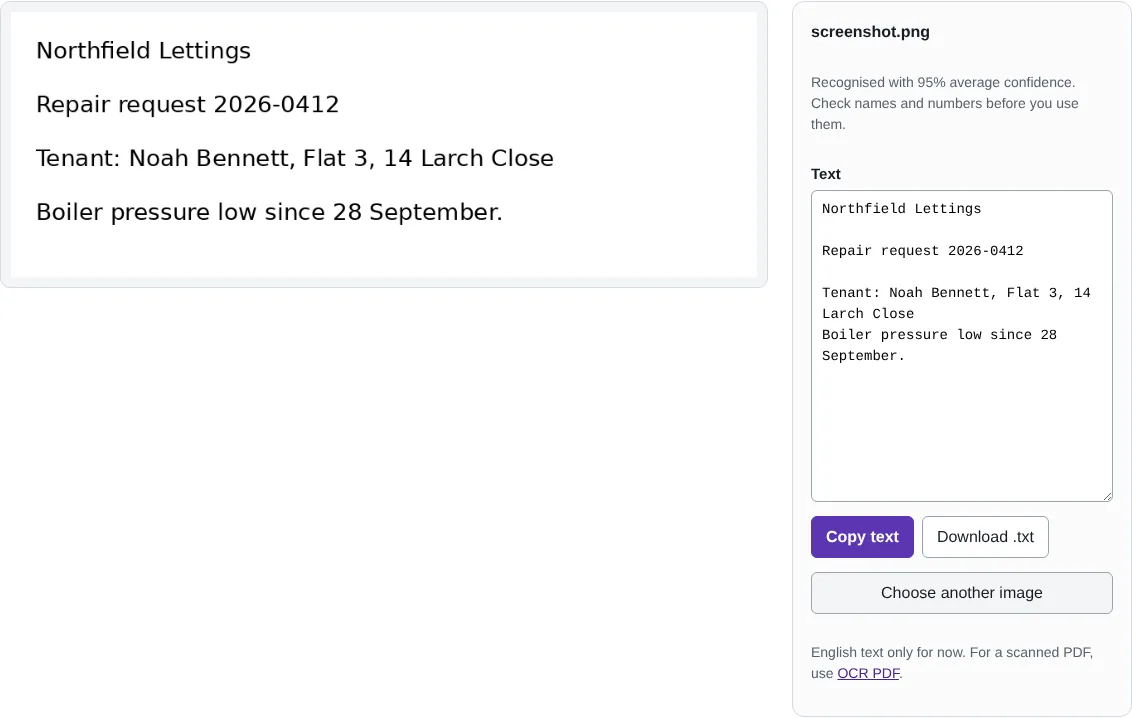
Worked example: a screenshot of a repair request
In this test we used a 900 x 320 pixel screenshot of four lines of a fictional letting agent's repair request, including a reference number, a tenant name and address, and a date. Every word and number was read correctly, with an average confidence of 95%, and the text could be copied or saved as a .txt file.
Getting the best results
Text recognition (OCR) works best on clear, straight, evenly lit text. Screenshots usually give near-perfect results. For photos of documents, fill the frame with the page, avoid shadows and keep the camera square to the page; use Crop image and Rotate image first if needed. Small screenshots are enlarged before reading, which helps with small text.
The tool uses Tesseract, an open source OCR engine, with English language data. It does not read handwriting reliably. The confidence figure is the engine's own estimate; always check names, numbers and dates against the picture.
Why read text on your device
Screenshots and photos of documents often contain exactly the details you would not want stored on someone else's server: account numbers, addresses, medical letters, payslips and messages. Here the text is read in your browser. The recognition files, about 15 MB, download from this site the first time and are then reused.
Typical uses are copying a reference number from a screenshot, turning a photographed letter into editable text, and getting the text of an image that someone sent you so you can search or quote it.
Good to know
- Recognises English text.
- Clear, straight, well-lit images give the best results. Handwriting is rarely read correctly.
- Check names, numbers and dates against the image before you use them.
Why your images stay on your device
RedactNinja Image runs in your web browser. When you choose an image, it is read and processed on your own computer, tablet or phone. It is not uploaded to a server, so there is nothing for us to store, look at or delete afterwards. The background remover and face finder use small AI models that your browser downloads from this site the first time you need them; the models come to your image, not the other way round.
You can check this yourself: open your browser's developer tools, select the Network tab and use a tool. Your image does not appear in the requests. The tools load no advertising or analytics code. How to check that nothing is uploaded.
Free, with no sign-up and no watermark
Every tool is free to use without an account. Nothing is added to your images, and there are no daily limits. Very large images depend on your device's memory, so older phones may be slower.
Questions about Image to text
Can it read a PDF?
For a scanned PDF, use OCR PDF, which adds searchable text to the PDF itself.
Are my images uploaded?
No. The tool runs in your browser and processes the image on your device. Nothing is sent to a server.
Is it free?
Yes. There is no account, no watermark and no daily limit.
Related tools
All image tools
Edit
- Remove background
- Resize image
- Crop image
- Rotate image
- Adjust colours
- Add watermark
- Annotate screenshot
- Combine images
Make smaller and convert
- Compress image
- Convert image
- HEIC to JPG
- PNG to JPG
- JPG to PNG
- WebP to JPG
- WebP to PNG
- JPG to WebP
- Favicon and icon maker