
Compress an image
Make photos smaller for email, websites and upload forms with a file size limit. Choose the quality, or set a largest file size and let the tool find the best quality that fits.
Your image will be processed on this device.
How to compress an image
- Select or drop one or more images.
- Set the quality, or tick Make each file smaller than a set size and enter the size in KB.
- Optionally limit the largest side, which saves the most space on big photos.
- Select Compress images, compare the sizes, then download.
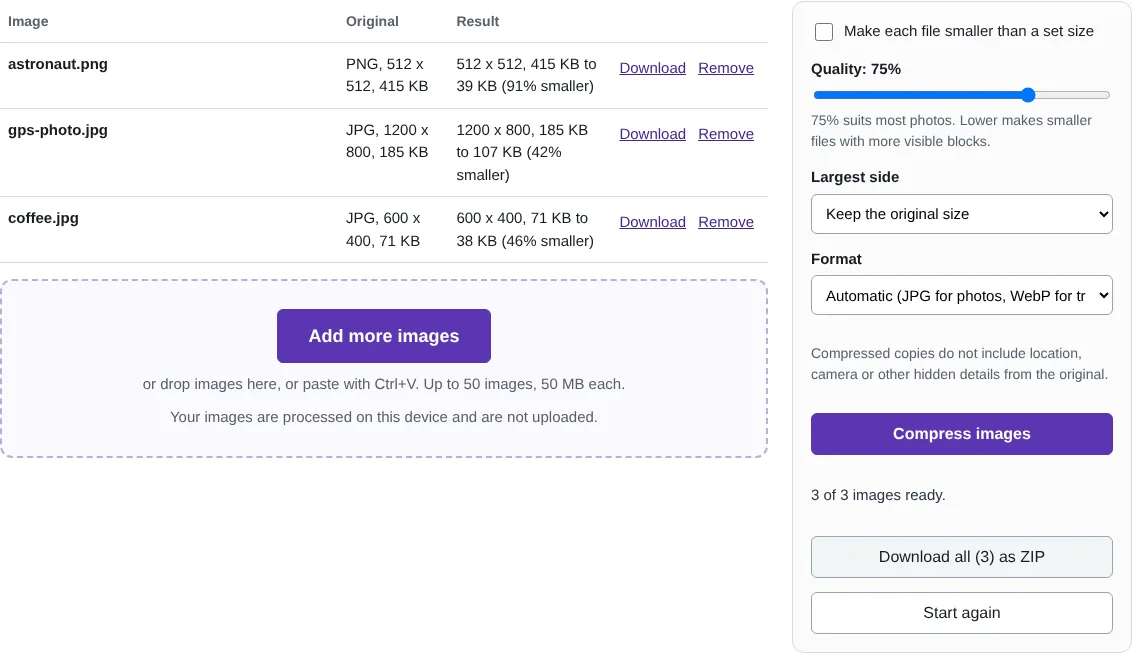
Worked example: default settings and a size limit
In this test we compressed three images with the default settings (automatic format, 75% quality, original size). A 512 x 512 PNG portrait of 415 KB became a 39 KB JPG, 91% smaller. A 1,200 x 800 JPG photo went from 185 KB to 107 KB, and a 600 x 400 JPG from 71 KB to 38 KB.
We then set a largest file size of 40 KB for the 1,200 x 800 photo. Quality alone was not enough, so the tool also reduced the picture to 768 x 512 pixels, and the result fitted at 40 KB.
Compress an image to a file size limit
Many upload forms limit the file size, for example 2 MB for an ID photo or 500 KB for a profile picture. Tick Make each file smaller than a set size and enter the limit in KB (1 MB is 1,024 KB). The tool tries different qualities to find the highest one that fits; if even a low quality is too big, it makes the picture smaller step by step until it fits, and tells you if it cannot.
Limiting the largest side is the most effective single setting for phone photos, which are often 4,000 pixels or more across. A longest side of 1,920 pixels is plenty for screens and usually saves far more than lowering the quality.
JPG, WebP and PNG: which format compresses best
JPG is the most widely accepted format for photos. WebP usually makes smaller files at the same quality, and keeps transparency, but some older programs cannot open it. PNG is lossless: it keeps every pixel exactly, so it is right for screenshots with small text but makes large files for photos.
Automatic saves photos as JPG and images with transparency as WebP where your browser can create it. If a file would not get smaller, for example an already well-compressed JPG, the original is kept and the list says so. To make a PDF smaller rather than an image, use Compress PDF.
Good to know
- Photos are saved as JPG, and images with transparency as WebP, unless you choose a format.
- If a file cannot be made smaller, the original is kept and the list says so.
- PNG is lossless, so to shrink a PNG photo choose JPG or WebP.
- Compressed copies do not include location, camera and date details.
Why your images stay on your device
RedactNinja Image runs in your web browser. When you choose an image, it is read and processed on your own computer, tablet or phone. It is not uploaded to a server, so there is nothing for us to store, look at or delete afterwards. The background remover and face finder use small AI models that your browser downloads from this site the first time you need them; the models come to your image, not the other way round.
You can check this yourself: open your browser's developer tools, select the Network tab and use a tool. Your image does not appear in the requests. The tools load no advertising or analytics code. How to check that nothing is uploaded.
Free, with no sign-up and no watermark
Every tool is free to use without an account. Nothing is added to your images, and there are no daily limits. Very large images depend on your device's memory, so older phones may be slower.
Questions about Compress image
How much smaller will my image be?
It depends on the picture. Phone photos often shrink a lot, especially with a smaller largest side. Screenshots and graphics shrink less.
Can I compress an image to under 100 KB?
Yes, if the picture allows it. Tick Make each file smaller than a set size and enter 100. If the quality alone is not enough, the tool also makes the picture smaller until it fits.
Are my images uploaded?
No. The tool runs in your browser and processes the image on your device. Nothing is sent to a server.
Is it free?
Yes. There is no account, no watermark and no daily limit.
Related tools
All image tools
Edit
- Remove background
- Resize image
- Crop image
- Rotate image
- Adjust colours
- Add watermark
- Annotate screenshot
- Combine images
Make smaller and convert
- Compress image
- Convert image
- HEIC to JPG
- PNG to JPG
- JPG to PNG
- WebP to JPG
- WebP to PNG
- JPG to WebP
- Favicon and icon maker