
Combine images side by side
Make a before and after picture, put two screenshots next to each other, or arrange several photos in a grid, ready to share as one image.
Your image will be processed on this device.
How to combine images side by side
- Select or drop two or more images.
- Choose Side by side, One above the other or Grid, and put the images in order.
- Set the space between them and the background, and add labels if you want them.
- Download the combined image.
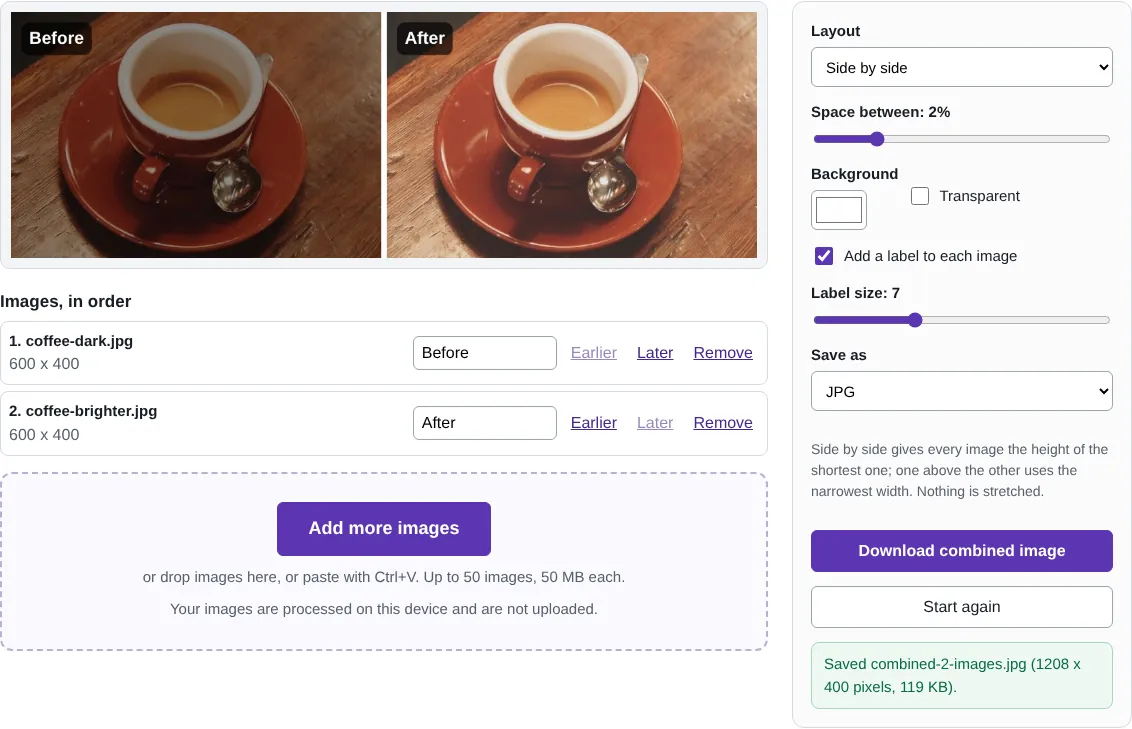
Worked example: a before and after picture
We combined the dark and the brightened versions of the coffee photo from the adjust colours example, both 600 x 400 pixels. With Side by side, a 2% gap and Add a label to each image ticked, the labels started as Before and After, and the result was a single 1,208 x 400 pixel JPG of 119 KB.
Changing the order is one click on Earlier or Later, and switching to Grid or One above the other updates the preview immediately. The labels follow the position, so the first picture is always Before.
How the images are sized
Nothing is stretched. Side by side scales every picture to the height of the shortest one, so a tall portrait and a wide landscape sit neatly in a row. One above the other uses the width of the narrowest picture. Grid gives every image a cell of the same size, based on the narrowest picture and the most common shape, and centres each image in its cell.
The space between images is a percentage of the picture size, and the background colour fills the gaps and any space round images in a grid. Tick Transparent and save as PNG if the combined picture will sit on a coloured web page or slide.
Good uses
Before and after pictures of a repair, a room or an edited photo; two versions of a design to compare; a series of screenshots showing the steps in a process; or a small grid of product photos. For screenshots with arrows or numbered steps, use Annotate screenshot on each one first, then combine them.
The combined picture is limited to 40 megapixels and is scaled down if it would be larger. For a grid of many large photos, resize them first to keep the result a sensible size to send.
Good to know
- Side by side gives every image the height of the shortest one, and one above the other uses the narrowest width, so nothing is stretched.
- With two images, the labels start as Before and After; you can type your own.
- Choose a transparent background and PNG if the combined image will go onto a coloured page.
- Very large results are scaled down to 40 megapixels.
Why your images stay on your device
RedactNinja Image runs in your web browser. When you choose an image, it is read and processed on your own computer, tablet or phone. It is not uploaded to a server, so there is nothing for us to store, look at or delete afterwards. The background remover and face finder use small AI models that your browser downloads from this site the first time you need them; the models come to your image, not the other way round.
You can check this yourself: open your browser's developer tools, select the Network tab and use a tool. Your image does not appear in the requests. The tools load no advertising or analytics code. How to check that nothing is uploaded.
Free, with no sign-up and no watermark
Every tool is free to use without an account. Nothing is added to your images, and there are no daily limits. Very large images depend on your device's memory, so older phones may be slower.
Questions about Combine images
How do I make a before and after picture?
Select the two photos, choose Side by side, tick Add a label to each image, and download. The labels start as Before and After.
How many images can I combine?
Up to 50. For more than four, a grid is usually easiest to read.
Are my images uploaded?
No. The tool runs in your browser and processes the image on your device. Nothing is sent to a server.
Is it free?
Yes. There is no account, no watermark and no daily limit.
Related tools
All image tools
Edit
- Remove background
- Resize image
- Crop image
- Rotate image
- Adjust colours
- Add watermark
- Annotate screenshot
- Combine images
Make smaller and convert
- Compress image
- Convert image
- HEIC to JPG
- PNG to JPG
- JPG to PNG
- WebP to JPG
- WebP to PNG
- JPG to WebP
- Favicon and icon maker